
This article does not contain affiliate links.
AI generated labels have made it faster than ever for small brands to arrive at a label concept. Midjourney generates visual directions in minutes. Canva produces layouts that look finished before a designer has been briefed. Adobe Firefly builds brand assets inside workflows that used to take days.
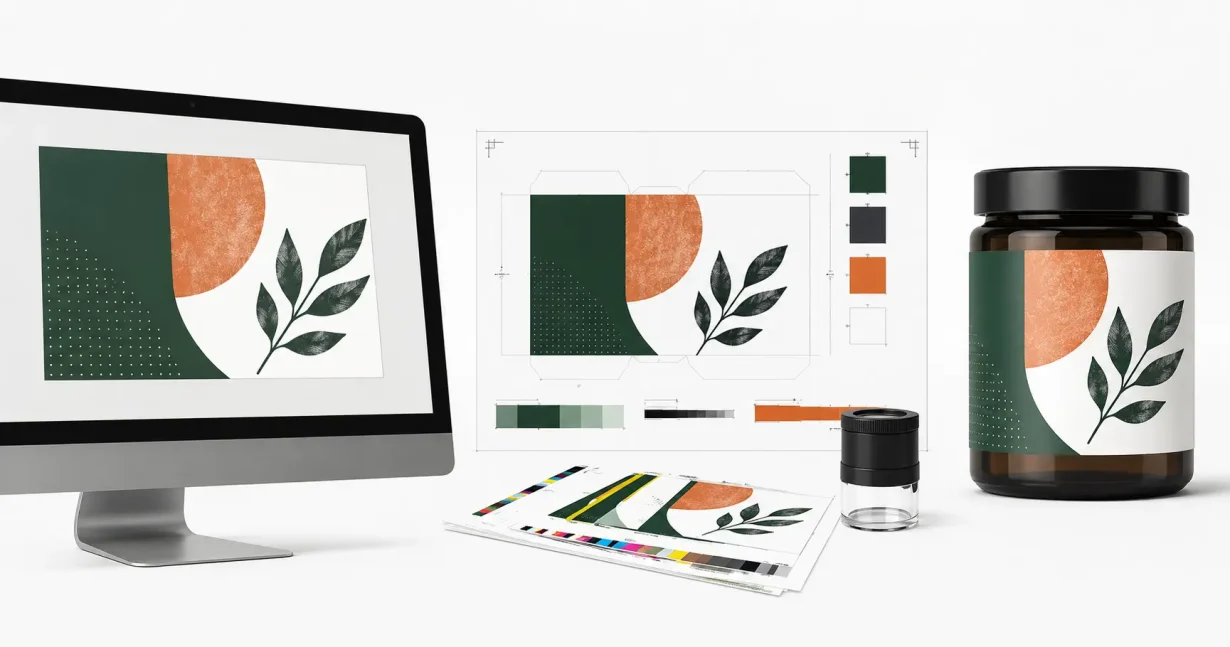
What none of these tools change is what a commercial print workflow needs to turn a concept into a manufactured label.
The gap between a beautiful screen output and a production-ready file is where most problems happen. Not because the tools are bad. Because the file formats, color spaces and structural requirements of commercial printing have nothing to do with how AI generates images.
This article focuses on raster-image AI tools including Midjourney and Adobe Firefly image generation. Design platforms that combine AI with traditional vector-based workflows, such as Canva with directly entered text or Adobe Illustrator with Firefly-generated assets, may avoid some of these limitations depending on how the workflow is constructed.
These are eight production issues frequently encountered when AI-generated label artwork enters a print workflow.
AI can generate a label concept. Production still requires a file built to manufacturing specifications.
Eight production problems in AI generated labels
Resolution that works on screen but fails at print scale
Most AI image generators export raster files intended for digital viewing rather than print production. Whether a file is suitable for print depends on its pixel dimensions relative to the intended physical size of the label. A file that looks sharp on screen may not contain enough pixel data to print cleanly at label dimensions.
Commercial label printing is commonly prepared at 300 DPI at the final physical dimensions of the finished label. When a low-resolution file is scaled up to fit a physical label, the print software interpolates the missing data. The result on the finished label is a blurred, soft image. The problem is in the source file, not the press.
This is a recurring issue when AI-generated files arrive for production. The artwork looks professional on screen. It prints soft.
RGB submitted into a CMYK workflow
AI image generators work in RGB color space. Screens display light, and RGB is built for light. Commercial label printers use physical ink and operate in CMYK color space.
When an RGB file enters a CMYK print workflow, the color values undergo a mandatory conversion. Bright digital colors, particularly neons, vivid purples and electric blues, shift during that conversion. The printed label comes back noticeably darker and flatter than the file looked on screen.
In many cases this is not a printer error. It is a color space mismatch that needs to be addressed before the file is submitted.
Missing bleed
Commercial printing uses physical cutting equipment. Cutting machines operate within a tolerance margin, meaning the cut line shifts slightly between runs. Bleed is the extra margin of artwork, typically 3mm or 0.125 inches, that extends beyond the intended cut line to absorb that variance.
AI generators produce self-contained images. The artwork stops at the edge of the file. There is no bleed built in because the tool has no concept of physical manufacturing tolerances.
Labels printed from AI files without bleed added in pre-press frequently come back with thin white edges along one or more sides. The fix is straightforward in pre-press software. The problem is that brands often do not know to ask for it.
Typography breakdown at label dimensions
AI image generators produce raster graphics. Typography in a raster file is a grid of pixels, not a mathematical vector path. At small label dimensions, rasterized text loses sharpness. Fine details in letterforms fill in. Small print covering regulatory information, ingredient lists and net weights on most labels becomes difficult to read.
Traditional label design builds typography as scalable vector paths. The text remains sharp at any size and at any print resolution.
Text generated as part of a raster image cannot be scaled with the same flexibility and clarity as vector typography and often requires reconstruction before the file is production-ready. Text entered directly in tools like Canva remains editable and does not carry this limitation.
Dielines treated as decoration
A dieline is a vector path that tells cutting equipment exactly where to cut the label. It sits on a dedicated layer, uses a specific spot color and does not print. The cutting machine reads it as a physical instruction.
When AI tools are prompted to design a label, they frequently generate a visible border or outline around the artwork. This looks like a dieline. It is not. It is a row of pixels. The cutting machine cannot read it as an instruction and a print operator has to build the actual dieline from scratch before the file can go to production.
Brands sometimes submit these files assuming the outline is functional. It is not.
Finish expectations the substrate cannot support
AI generates visually compelling concepts. Midjourney and Adobe Firefly regularly produce label concepts featuring metallic foil, raised embossing and glossy spot UV textures. These finishes look striking on screen.
Specialty finishes in commercial printing require dedicated spot color channels in the artwork file. Each finish needs its own layer mapped to a specific print instruction. AI outputs a flat image file. There are no channels, no layers and no spot color information. A printer receiving that file will print the metallic-looking area as a standard ink approximation, which looks nothing like foil.
The concept can be used as a reference. The file cannot go to print as delivered.
The gap between screen color and printed output
Screens are backlit. Light passes through the display, which makes colors appear bright, saturated and luminous. Printed labels sit on a substrate and reflect ambient light back at the viewer.
Calibration and ICC profiles can reduce the gap, but screen and print are fundamentally different mediums. Screens emit light. Printed labels reflect it. That physical difference means screen color is a starting point, not a guarantee of printed output.
Brands working from AI concepts benefit from seeing a physical proof before committing to a full production run.
AI-generated text errors that reach production undetected
Current AI image generators struggle with text accuracy. The problem is structural. These tools generate images by predicting what visual content should look like, not by rendering actual characters. The result is text that looks correct at a glance and contains errors on closer inspection.
These errors include misspelled brand names, garbled ingredient lists, nonsensical regulatory statements and letter combinations that resemble words without being words.
Files generated in Canva using typed text do not have this problem because the text is entered directly. Files generated in Midjourney or Adobe Firefly where text appears as part of the image output should have every word verified before the file goes anywhere near production.
What AI actually does well
The eight issues above are pre-press realities, not arguments against using AI in a packaging workflow.
AI tools generate visual directions faster than any briefing process. A brand owner can explore ten different label aesthetics in an afternoon using Midjourney. Adobe Firefly produces realistic background textures and brand visuals that would take a designer hours to build from scratch. Canva handles layout, mockups and brand consistency for teams without a dedicated designer.
We have since tested three of these tools against the same packaging brief and inspected the exported files: Canva AI on the free tier, Recraft at $12 a month, and Kittl at $15. The findings are specific to each tool rather than to AI in general.
The limitation is not the concept stage. It is the file output. AI produces concept artwork. Pre-press production requires mechanical files built to print specifications. Those two things are not the same, and treating one as the other is where the cost and frustration come from.
What this means for brands using AI tools
The practical implication is straightforward. AI-generated artwork is a starting point, not a finished file.
A brand that uses Midjourney to develop a label concept and then sends that file directly to a printer is skipping the pre-press stage entirely. The printer will either reject the file or produce something that does not match the concept. Neither outcome is useful.
The workflow that works: AI for concept generation, then pre-press software or a print-ready designer to convert that concept into a file the press can use. The two stages serve different purposes and require different tools.
Production checklist before sending AI-generated artwork to print
Before any AI-generated label file goes to a printer, run through these checks. They sit alongside what your supplier brief should contain.
Resolution: All raster image elements at 300 DPI at final print dimensions.
Color space: Document converted from RGB to CMYK.
Bleed: Background artwork extended at least 3mm beyond the trim line on all sides.
Typography: All text rebuilt as vector paths or live editable text, not raster image text.
Dieline: A functional vector cut path on a dedicated spot color layer, separate from the artwork.
Specialty finishes: Any foil, emboss or spot UV areas mapped as dedicated spot color channels with clear layer naming.
Text accuracy: Every word verified against the intended copy, including any text that appears to have been generated as part of the image.
FAQ
-
Can AI-generated artwork be sent directly to a label printer?
AI-generated artwork is typically delivered as raster imagery rather than production-ready print files. These files generally do not meet the color space, resolution, bleed or dieline requirements of commercial label printing. They work as concept references. They are not production files.
-
Why does my AI label look different when it arrives from the printer?
Screens emit light, which makes colors appear brighter and more saturated than they will look on a printed substrate. The color space conversion from RGB to CMYK also shifts color values. Both factors contribute to printed output looking darker and flatter than the screen version.
-
What is bleed and why does it matter for label printing?
Bleed is an additional margin of artwork that extends beyond the intended cut line. Cutting equipment operates within a tolerance range, so the cut position shifts slightly between labels. Without bleed, that shift produces a white edge along one side of the label. Most commercial printers specify 3mm of bleed on all sides.
-
Can AI generate the dieline for a custom-shaped label?
Current AI image generators cannot produce functional dielines. A line drawn by an AI tool as part of the image artwork is a row of pixels, not a vector path. Cutting equipment requires a mathematical vector path to determine where to cut. Dielines have to be built in vector software separately from the AI-generated artwork.
-
How do I fix AI-generated text that contains errors?
AI image generators produce text as part of the image output, not as editable characters. The reliable fix is to erase the AI-generated text in pre-press software and retype it using standard fonts. This applies regardless of whether errors are visible at screen size.